> ## Documentation Index
> Fetch the complete documentation index at: https://help.shodanpro.com/llms.txt
> Use this file to discover all available pages before exploring further.
# 商材・サービスを登録する
## この機能でできること
自社が売っている商品やサービスを「商材・サービス」として登録し、一覧で見渡せます。登録した内容は、あとから詳細画面で見直したり、直したりできます。
## 使う前の準備
無料プランではこの機能を使えません。有料プランでご利用ください。
## 手順
### 1. 左のメニューの「商材・サービス」を押す
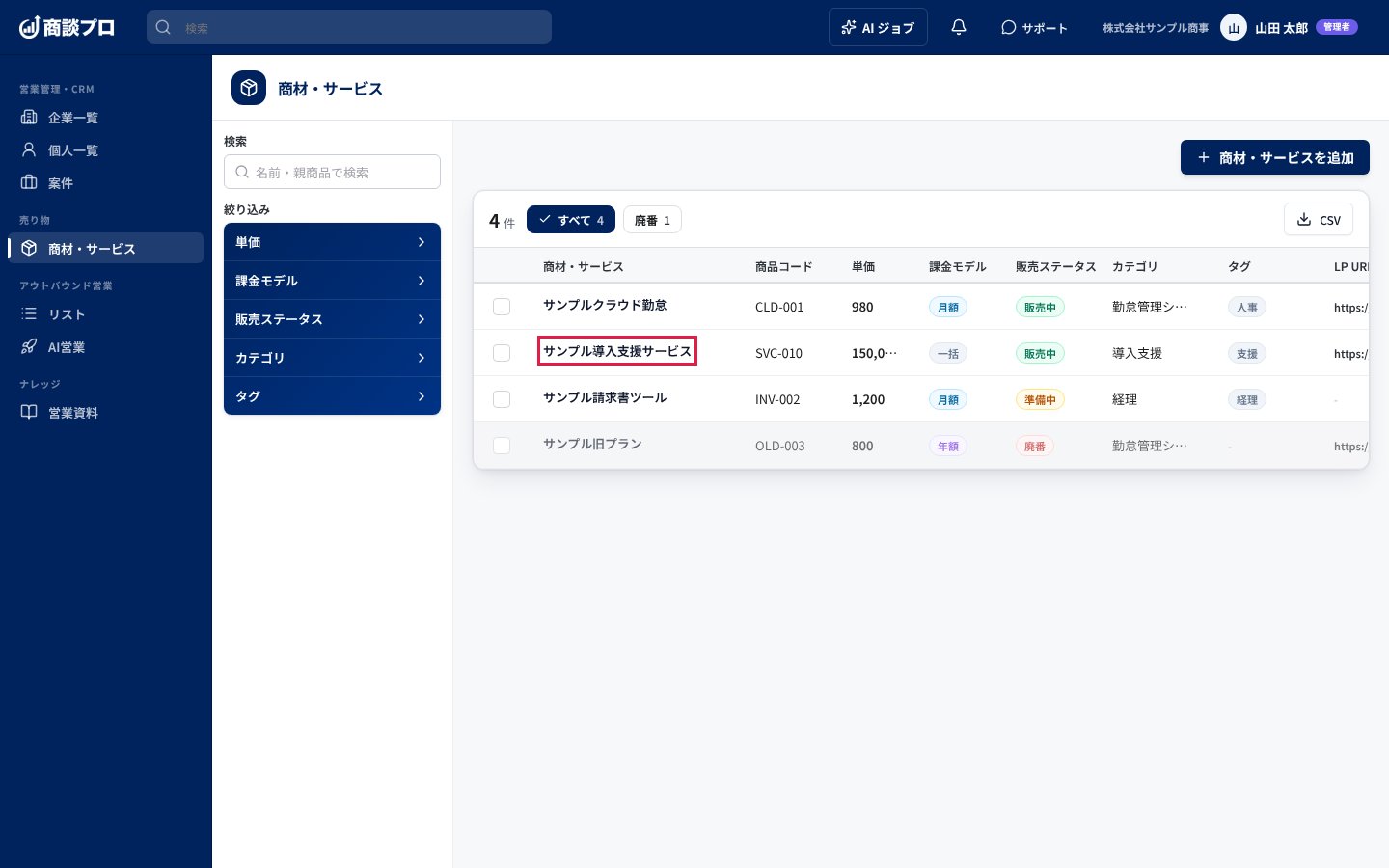
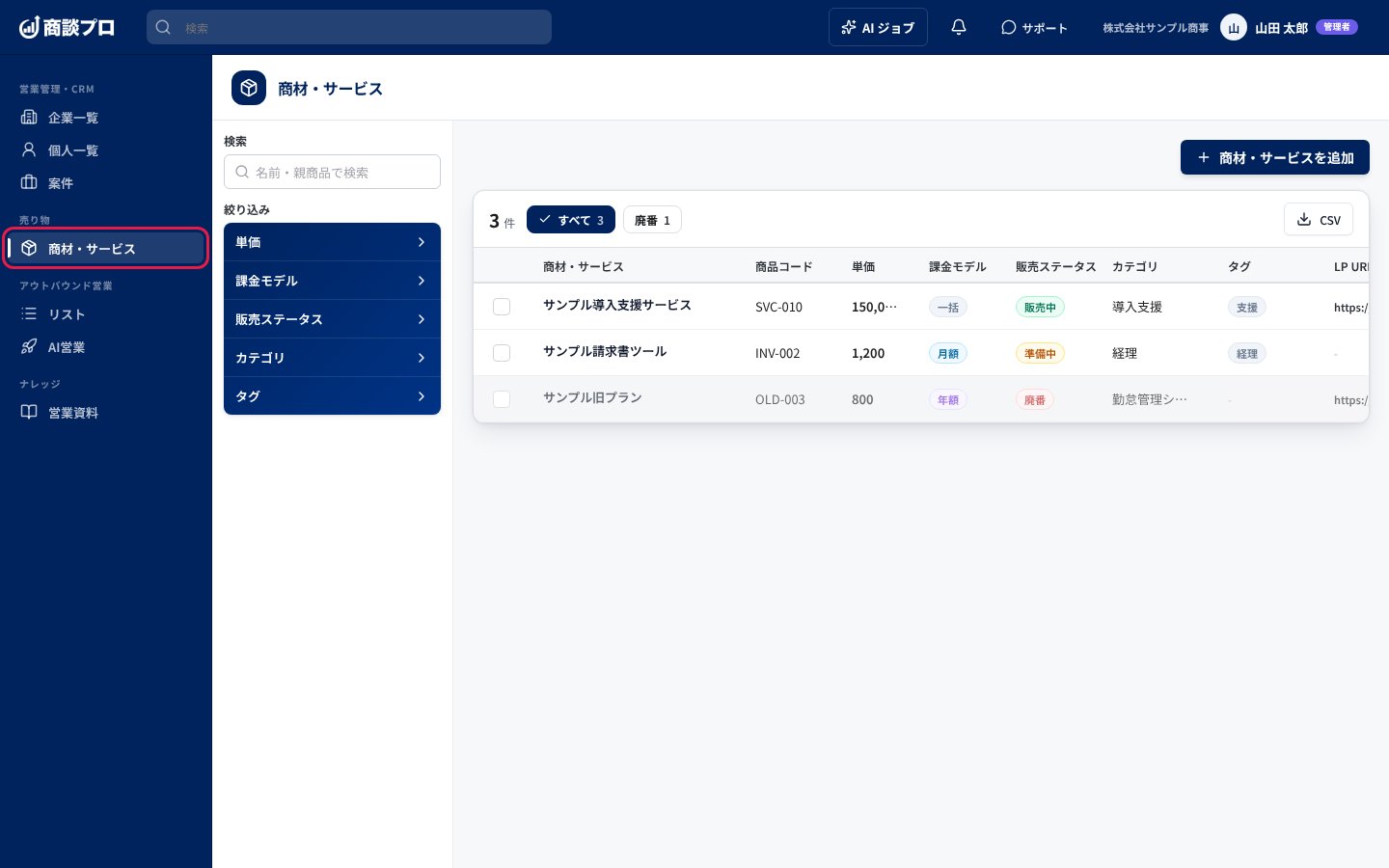 登録済みの商材・サービスが一覧で開きます。「廃番」の行は薄く表示されます。
### 2. 「商材・サービスを追加」を押す
登録済みの商材・サービスが一覧で開きます。「廃番」の行は薄く表示されます。
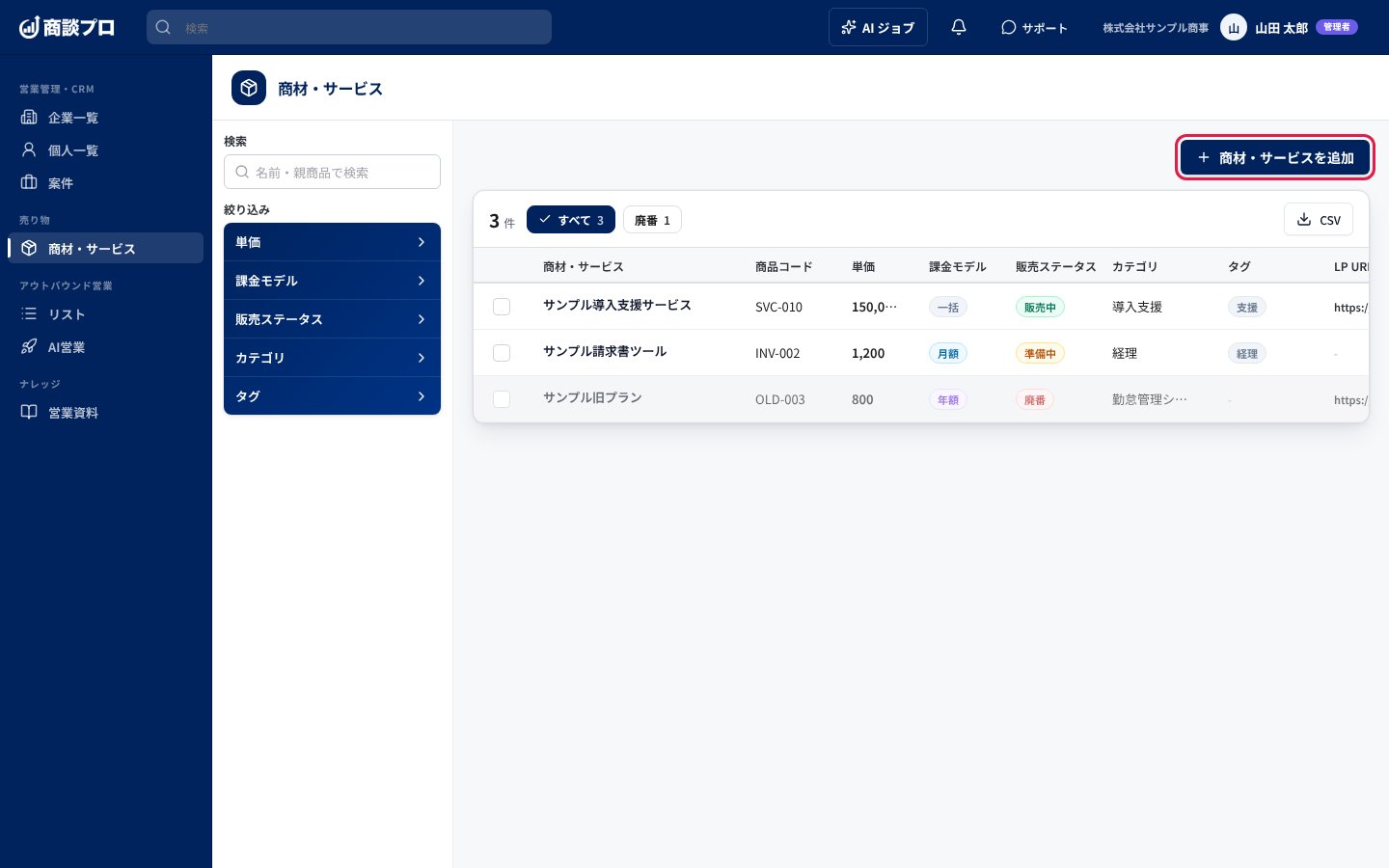
### 2. 「商材・サービスを追加」を押す
 ### 3. 「読み取らずに自分で入力する」を押す
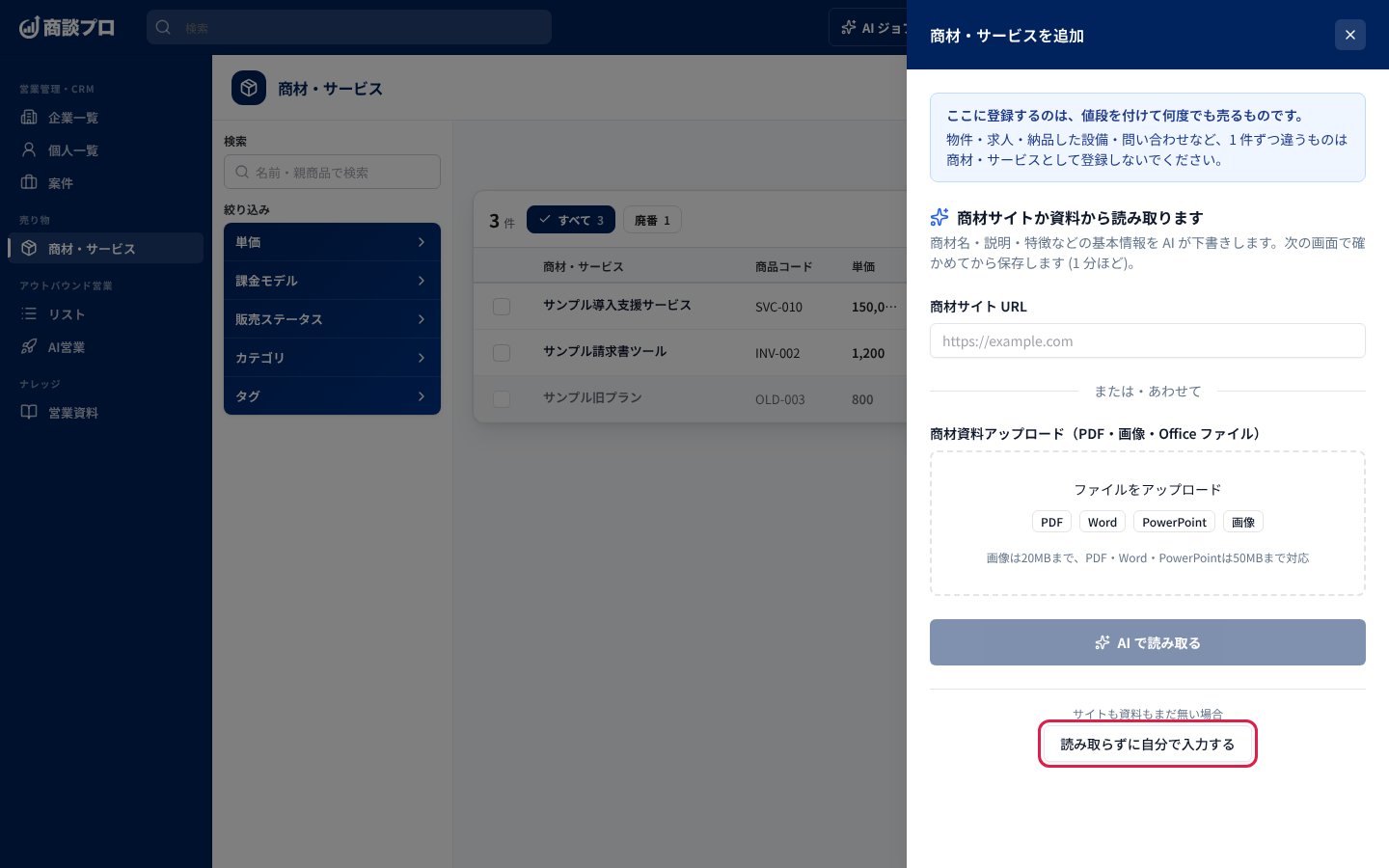 商材のサイトの URL や資料を入れて「AI で読み取る」を押すと、AI が商材名や説明などの下書きを作ります。サイトも資料もまだ無いときは、この手順のとおり自分で入力します。
### 4. 商材名を入れて「この内容で保存する」を押す
商材のサイトの URL や資料を入れて「AI で読み取る」を押すと、AI が商材名や説明などの下書きを作ります。サイトも資料もまだ無いときは、この手順のとおり自分で入力します。
### 4. 商材名を入れて「この内容で保存する」を押す
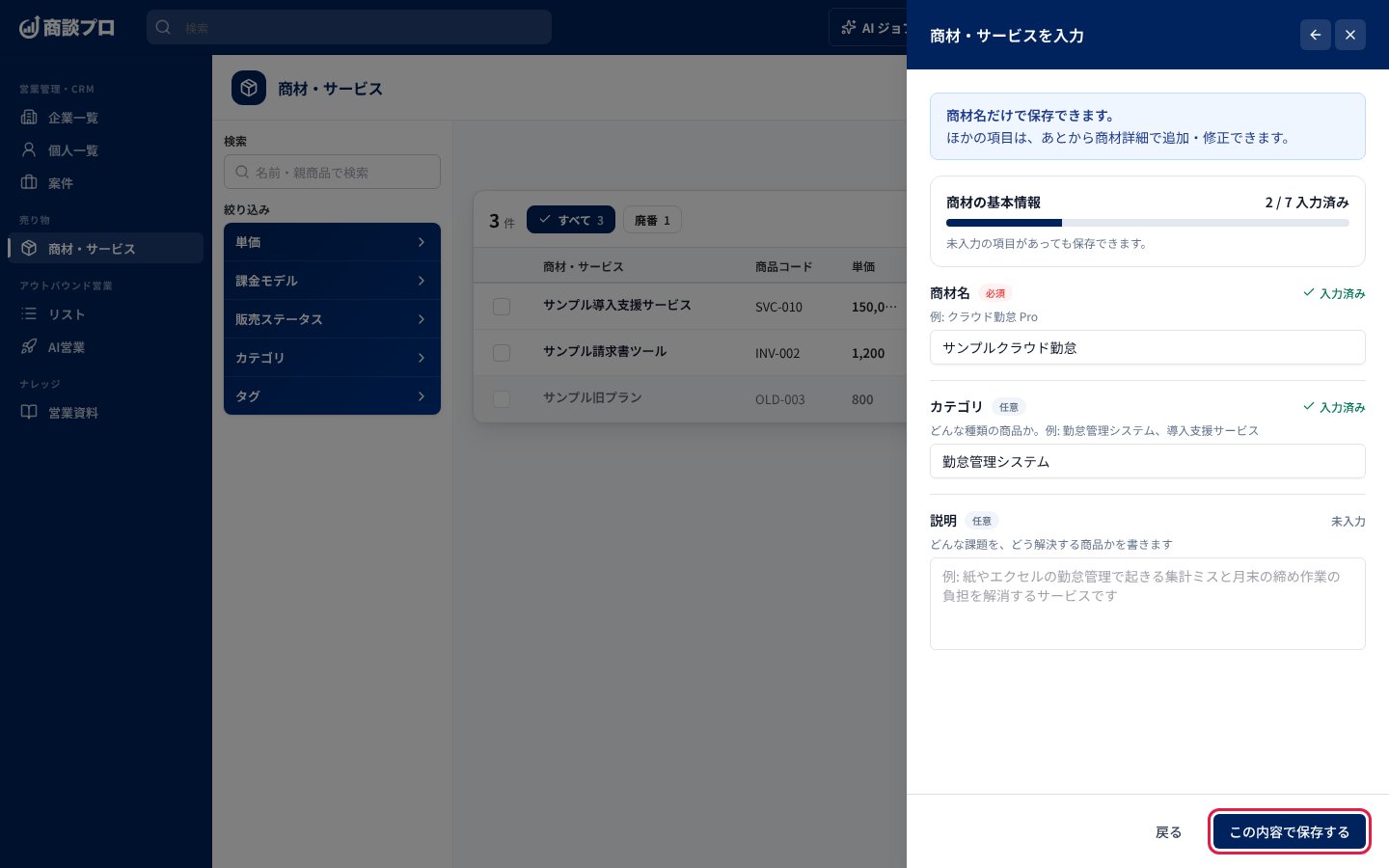 商材名だけで保存できます。ほかの項目は、あとから商材詳細で追加・修正できます。保存すると「商材・サービスを作成しました」と表示され、「商材詳細を開く」から作った商材の詳細に進めます。
### 5. 一覧の商材名を押して詳細を開く
商材名だけで保存できます。ほかの項目は、あとから商材詳細で追加・修正できます。保存すると「商材・サービスを作成しました」と表示され、「商材詳細を開く」から作った商材の詳細に進めます。
### 5. 一覧の商材名を押して詳細を開く
 ### 6. 「まとめて編集する」を押して内容を直す
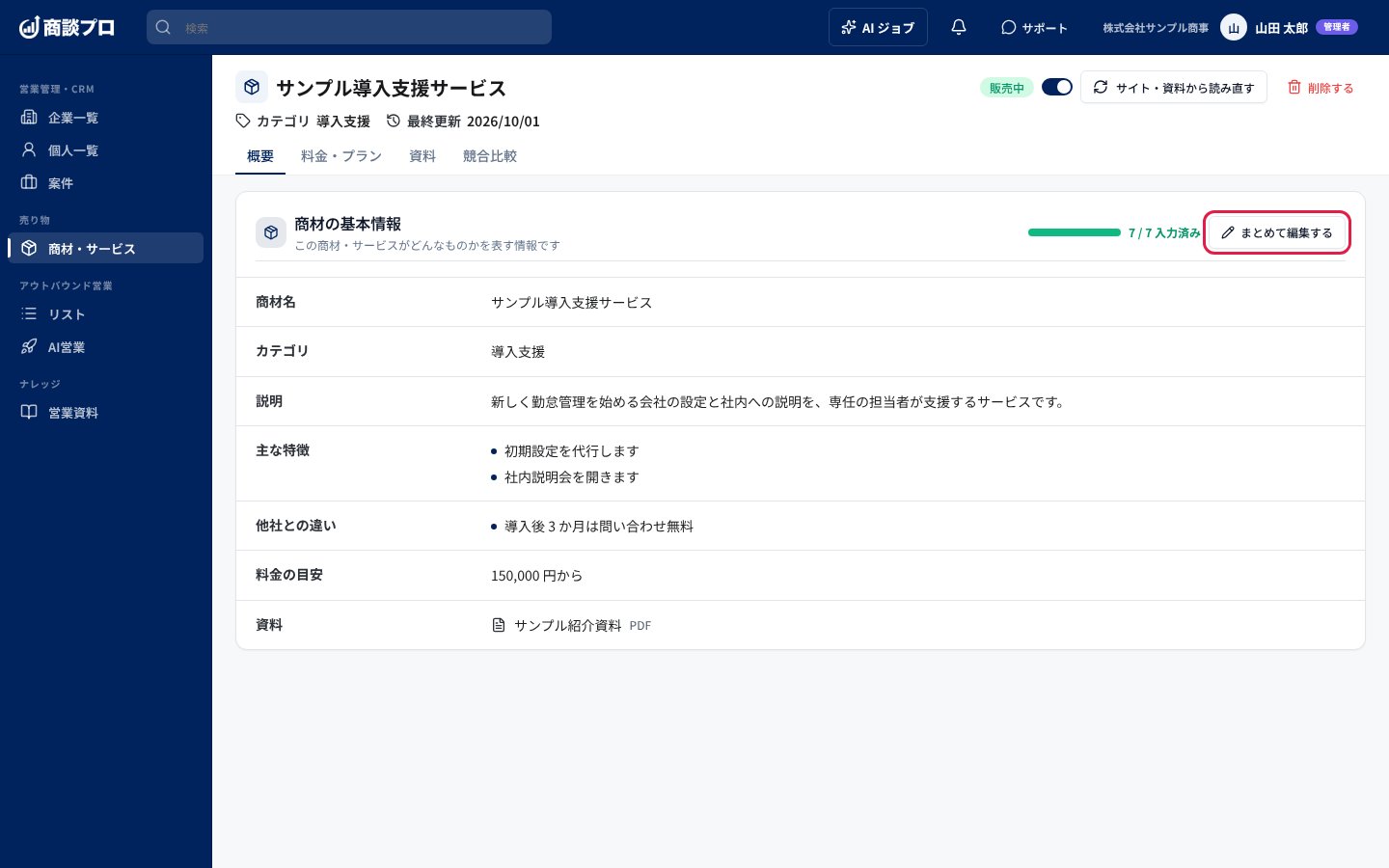 「概要」タブに、商材名・カテゴリ・説明・主な特徴・他社との違い・料金の目安・資料の 7 項目が並びます。「商材の基本情報を編集」が開くので、直したら「保存する」を押します。やめるときは「キャンセル」を押します。
プランごとの料金は「料金・プラン」タブで追加できます。
## つまずきやすい点
* 一覧に出す商材・サービスは「値段を付けて何度でも売るもの」だけです。物件・求人・納品した設備・問い合わせなど、1 件ずつ違うものは登録しないでください。
* 「AI で読み取る」は、商材サイトの URL を入れるか、資料をアップロードするまで押せません。
This documentation is built and hosted on [Mintlify](https://mintlify.com), a developer documentation platform.
「概要」タブに、商材名・カテゴリ・説明・主な特徴・他社との違い・料金の目安・資料の 7 項目が並びます。「商材の基本情報を編集」が開くので、直したら「保存する」を押します。やめるときは「キャンセル」を押します。
プランごとの料金は「料金・プラン」タブで追加できます。
## つまずきやすい点
* 一覧に出す商材・サービスは「値段を付けて何度でも売るもの」だけです。物件・求人・納品した設備・問い合わせなど、1 件ずつ違うものは登録しないでください。
* 「AI で読み取る」は、商材サイトの URL を入れるか、資料をアップロードするまで押せません。
This documentation is built and hosted on [Mintlify](https://mintlify.com), a developer documentation platform.