> ## Documentation Index
> Fetch the complete documentation index at: https://help.shodanpro.com/llms.txt
> Use this file to discover all available pages before exploring further.
# 個人(連絡先)を管理する
## この機能でできること
取引先の担当者など、やり取りする相手を「個人」として一覧にまとめて管理できます。新しい人を登録したり、登録した人の詳細を開いて名前や所属会社などを確認・書き換えたりできます。
## 使う前の準備
特にありません。
## 手順
### 1. 左のメニューの「個人一覧」を押す
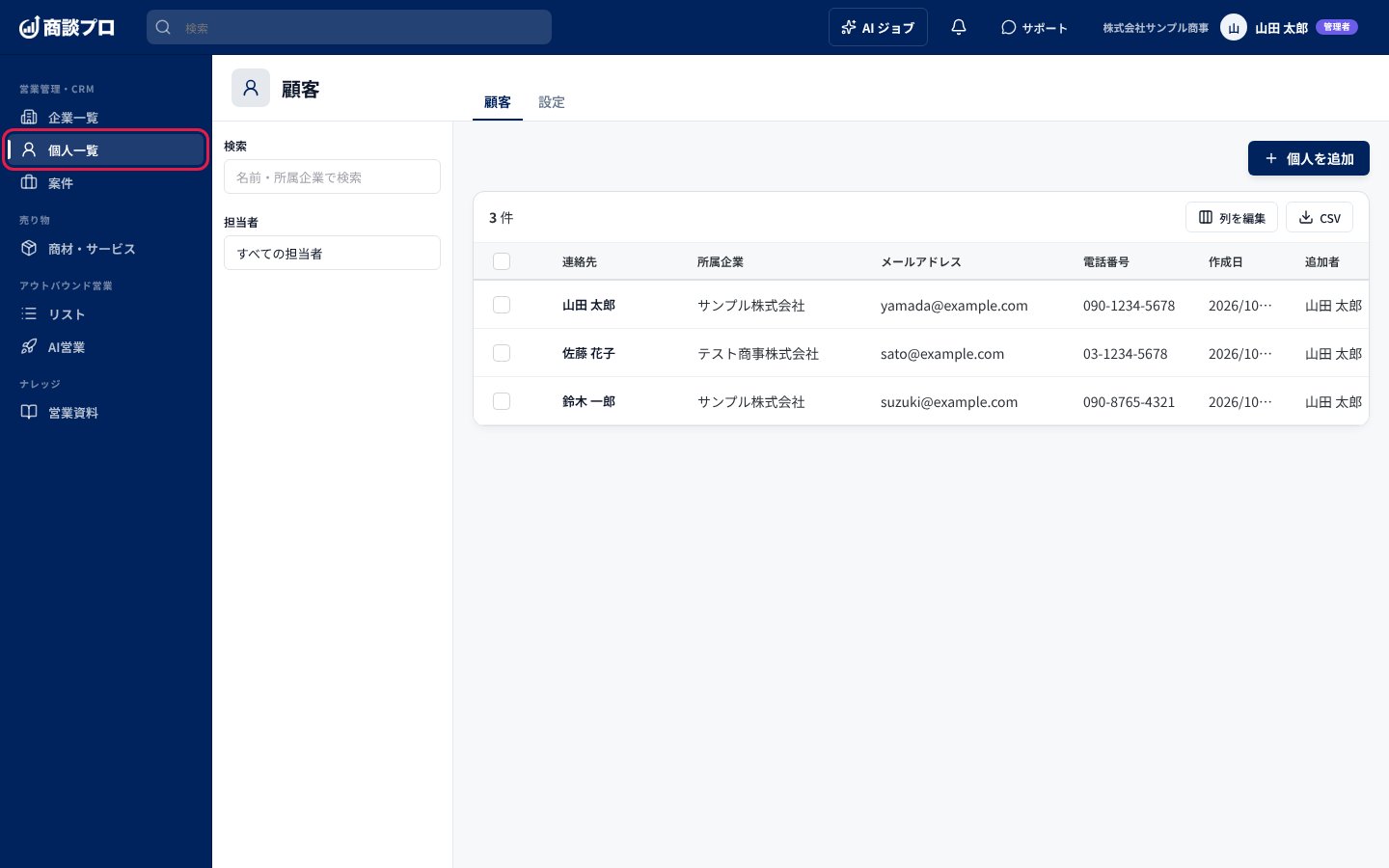 登録済みの個人が一覧で表示されます。左の「検索」や「担当者」で、探したい人を絞り込めます。
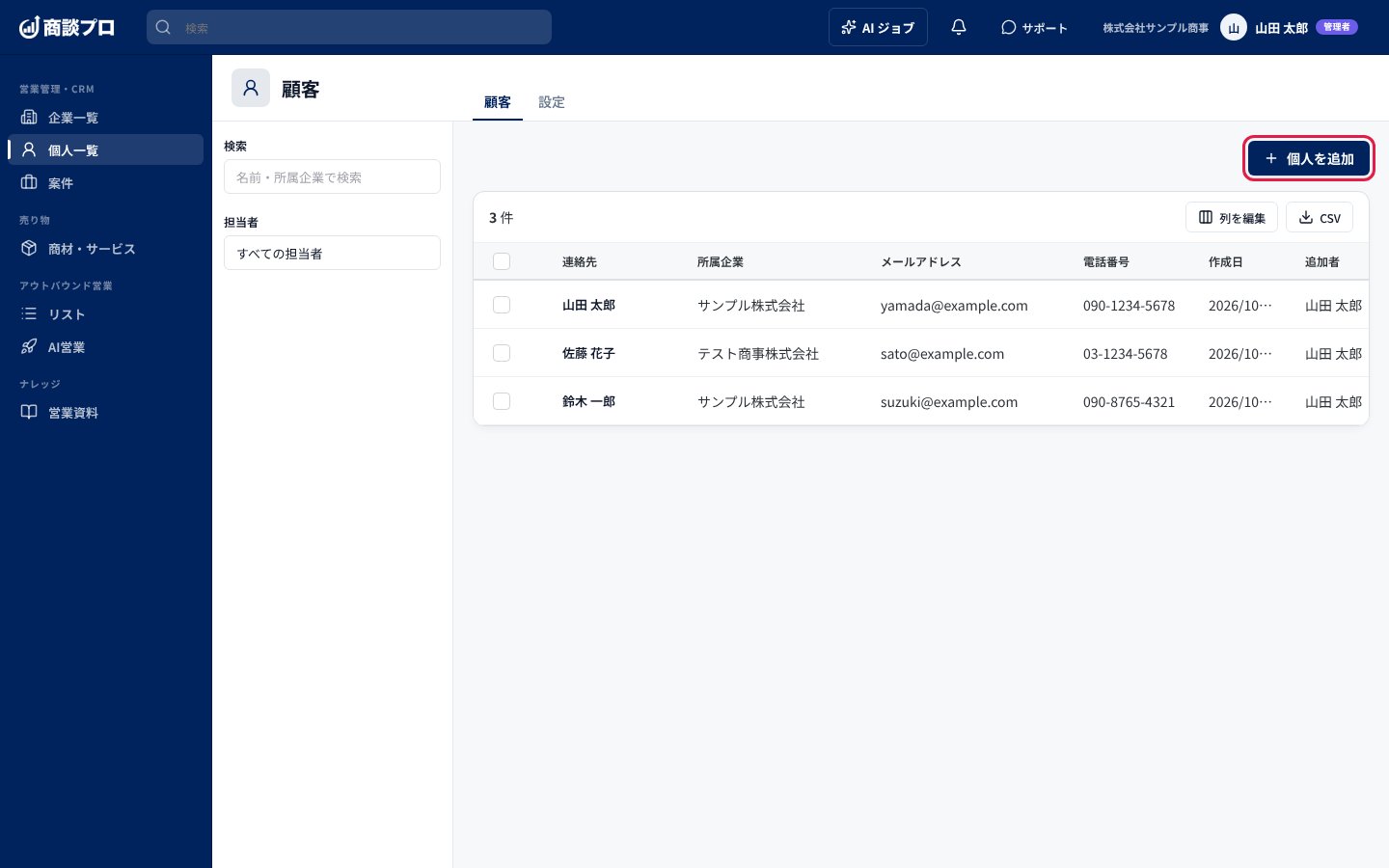
### 2. 「個人を追加」を押す
登録済みの個人が一覧で表示されます。左の「検索」や「担当者」で、探したい人を絞り込めます。
### 2. 「個人を追加」を押す
 ### 3. 内容を入力して「追加する」を押す
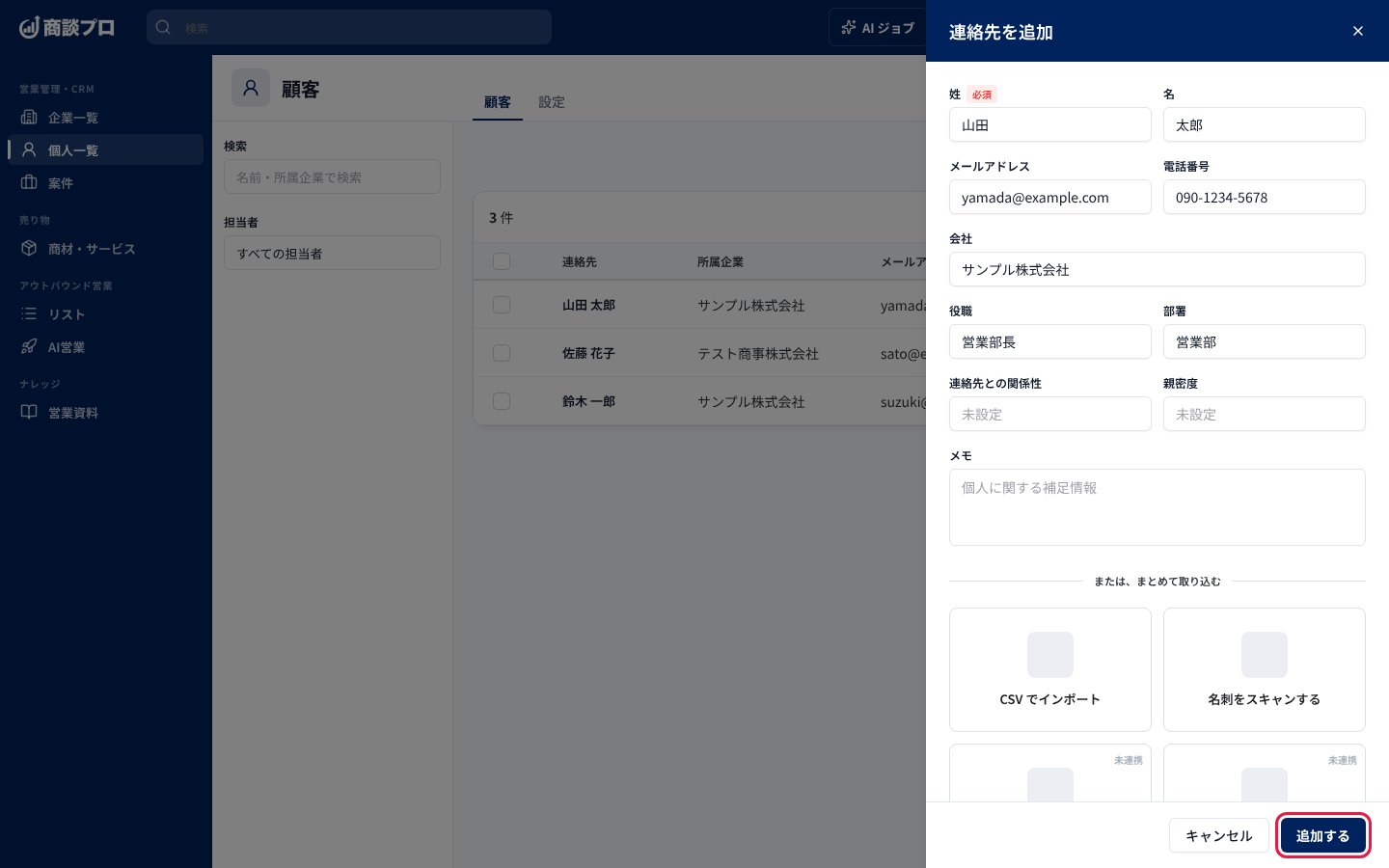 右から入力画面が開きます。「姓」か「名」のどちらかを入力すると「追加する」を押せるようになります。メールアドレス・電話番号・会社・役職・部署・メモなどは、わかる範囲で入力します。
画面の下にある「CSV でインポート」や「名刺をスキャンする」から、まとめて取り込むこともできます。
### 4. 一覧で個人の名前を押す
右から入力画面が開きます。「姓」か「名」のどちらかを入力すると「追加する」を押せるようになります。メールアドレス・電話番号・会社・役職・部署・メモなどは、わかる範囲で入力します。
画面の下にある「CSV でインポート」や「名刺をスキャンする」から、まとめて取り込むこともできます。
### 4. 一覧で個人の名前を押す
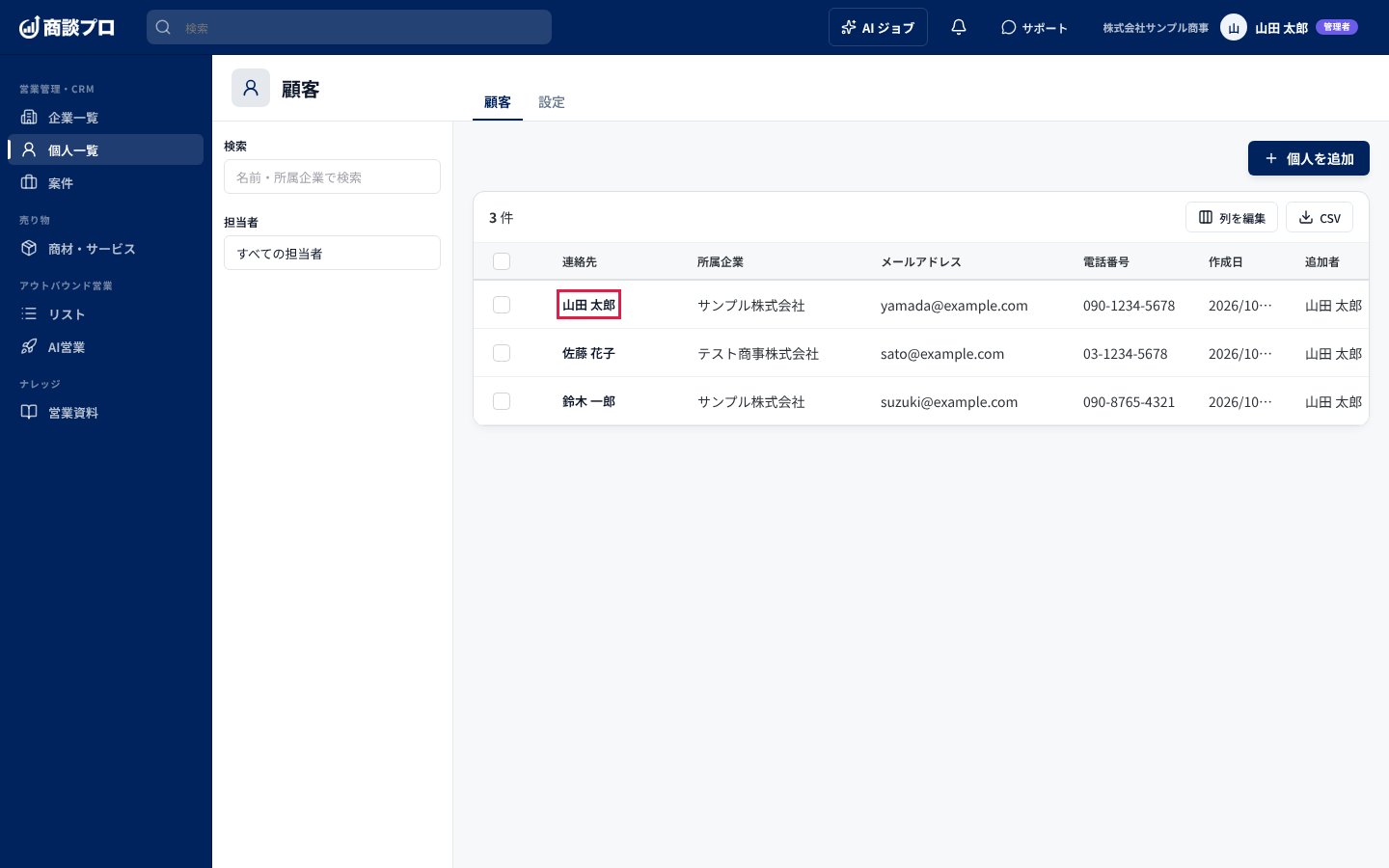 追加した人が一覧に並びます。名前を押すと詳細の画面が開きます。
### 5. 詳細で情報を確認し、名前を書き換える
追加した人が一覧に並びます。名前を押すと詳細の画面が開きます。
### 5. 詳細で情報を確認し、名前を書き換える
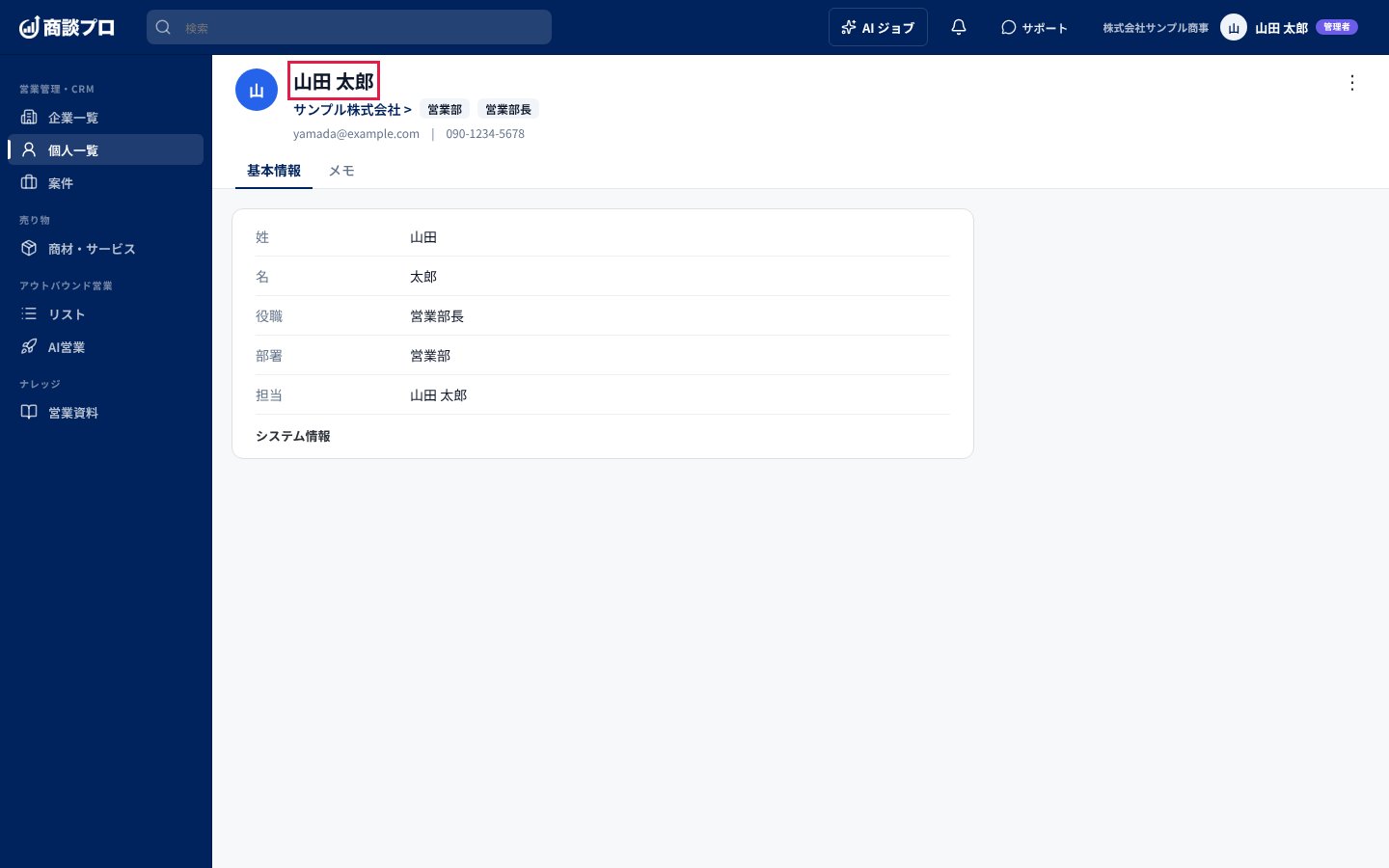 「基本情報」タブで登録内容を、「メモ」タブでメモを確認できます。名前を押すと書き換えられます。Enter キーで保存、Esc キーでやめます。
右上の「⋮」(その他のアクション)からは、「所属会社を変更する」「送信禁止に追加」「削除する」が選べます。
## つまずきやすい点
* 「姓」と「名」が両方空のあいだは「追加する」を押せません。
* すでに登録されているメールアドレスを入力して「追加する」を押すと、「(名前)(メールアドレス)は既に登録されています」と表示され、追加されません。
This documentation is built and hosted on [Mintlify](https://mintlify.com), a developer documentation platform.
「基本情報」タブで登録内容を、「メモ」タブでメモを確認できます。名前を押すと書き換えられます。Enter キーで保存、Esc キーでやめます。
右上の「⋮」(その他のアクション)からは、「所属会社を変更する」「送信禁止に追加」「削除する」が選べます。
## つまずきやすい点
* 「姓」と「名」が両方空のあいだは「追加する」を押せません。
* すでに登録されているメールアドレスを入力して「追加する」を押すと、「(名前)(メールアドレス)は既に登録されています」と表示され、追加されません。
This documentation is built and hosted on [Mintlify](https://mintlify.com), a developer documentation platform.